Search in uioop.blogspot.com

Wednesday, August 18, 2010

How do I find my Mac OS X Leopard 10.5's IP address?

How do I find my Mac OS X Leopard 10.5's IP address?

In order to find out your Mac OS X Leopard 10.5's IP address

In the Applications folder open the Utilities Folder.

Utilities

In the Utilities folder open the utility called Network Utility.

Network Utility

Select the (default) Info tab. The IP address of the active network connection will be shown. In this example it is 192.168.0.40

Network Utility

If you drop the Network Interface drop down you will see the different network connections available to the Mac, en1 is the Airport (wireless), en0 is the ethernet (wired) and fw0 is the Firewire, if you are using Firewire as a network connection.

Network Utility

How do I find my Mac OS X Leopard 10.5's IP address?

How do I find my Mac OS X Leopard 10.5's IP address?

In order to find out your Mac OS X Leopard 10.5's IP address

In the Applications folder open the Utilities Folder.

Utilities

In the Utilities folder open the utility called Network Utility.

Network Utility

Select the (default) Info tab. The IP address of the active network connection will be shown. In this example it is 192.168.0.40

Network Utility

If you drop the Network Interface drop down you will see the different network connections available to the Mac, en1 is the Airport (wireless), en0 is the ethernet (wired) and fw0 is the Firewire, if you are using Firewire as a network connection.

Network Utility

Tuesday, August 17, 2010

DAY 1 in MacOS - How To Convert DMG To ISO On A Mac


Code:
hdiutil convert ~/Desktop/'filename.dmg' -format UDTO -o ~/Desktop/'filename.iso'
(Where filename is replace with the actual name)


Have you ever needed to convert a DMG file to ISO, or an ISO file to DMG on your Mac? Converting image files on your Mac is easy thanks to a command line utility included in Mac OS X called hdiutil. Simply launch the Terminal and use the commands below, replacing the path and image file with your own.

Convert a DMG file to ISO

hdiutil convert /path/imagefile.dmg -format UDTO -o /path/convertedimage.iso

Convert an ISO file to DMG format

hdiutil convert /path/imagefile.iso -format UDRW -o /path/convertedimage.dmg

This tip is particularly useful if you have a CD/DVD burner on a Mac (or PC) and not a PC (or Mac) and you need to burn a disk image using the other machine.

This will actually create a file called imagefile.iso.cdr in the current directory, but you’ll want to change that to just .iso, so type:
mv convertedimage.iso.cdr convertedimage.iso

DAY 1 in MacOS - Changing the Drive/Volume in Terminal

Article from http://guides.macrumors.com/Terminal

1. Call/Run Terminal - Click the Finder and key-in Terminal and hit enter.


In Terminal, if you
Code:
ls /Volumes
you'll see all of your drives. You can then cd to one of them (or just cd directly - no need to list the volumes first). For example:
Code:
cd /Volumes/My\ Other\ Drive
Spaces are replaced by '\ '. Or you can put the whole thing in quotes:
Code:
cd /Volumes/"My Other Drive"
If the drive name has no spaces, then you'd just use the name:
Code:
cd /Volumes/MyOtherDrive
Here is a list of common commands:

ls list files and directories
cd change directory
mkdir create a new directory
cp copy files or directories
mv move (rename) files or directories
rm remove files or directories

2. Mac OS X Terminal Commands list

Wednesday, August 11, 2010

Test Drive Google Android OS on Windows 7

Article from http://www.redmondpie.com/android-emulator-for-windows/

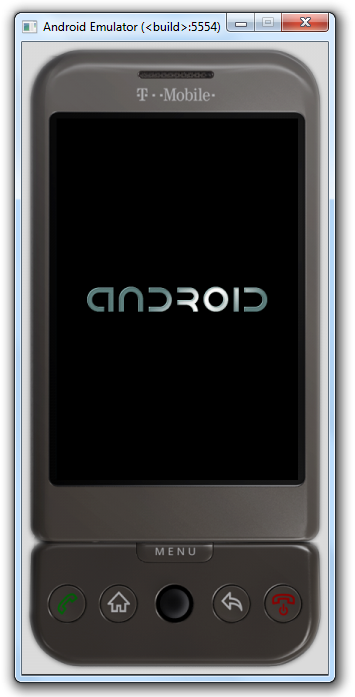
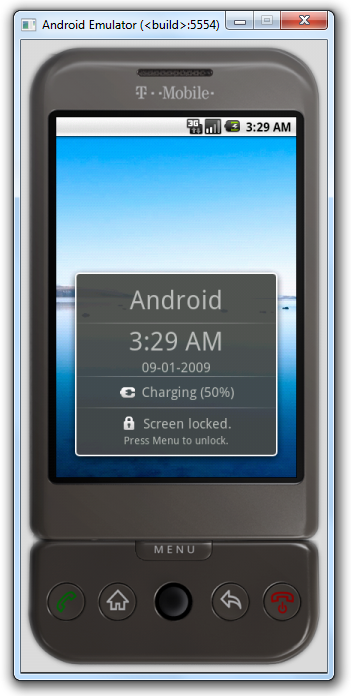
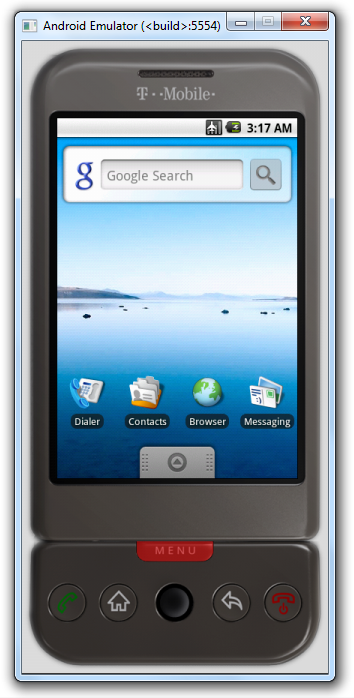
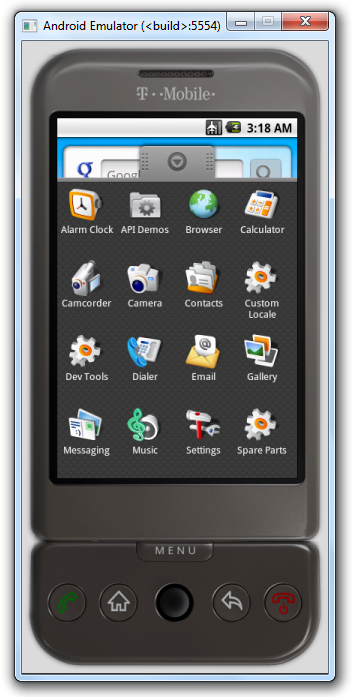
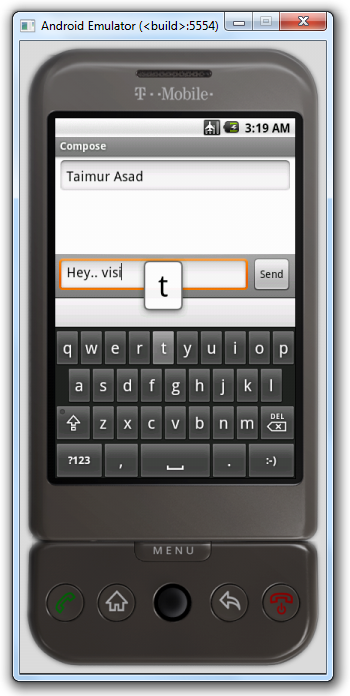
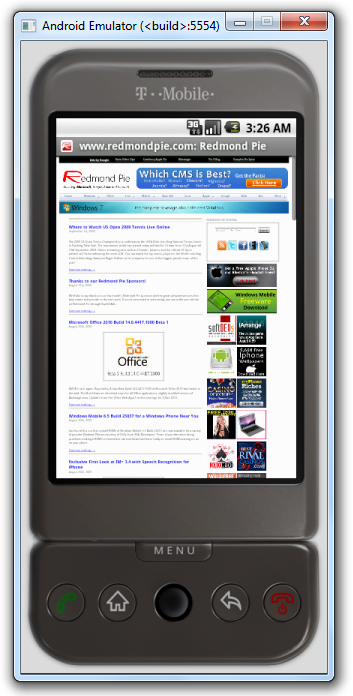
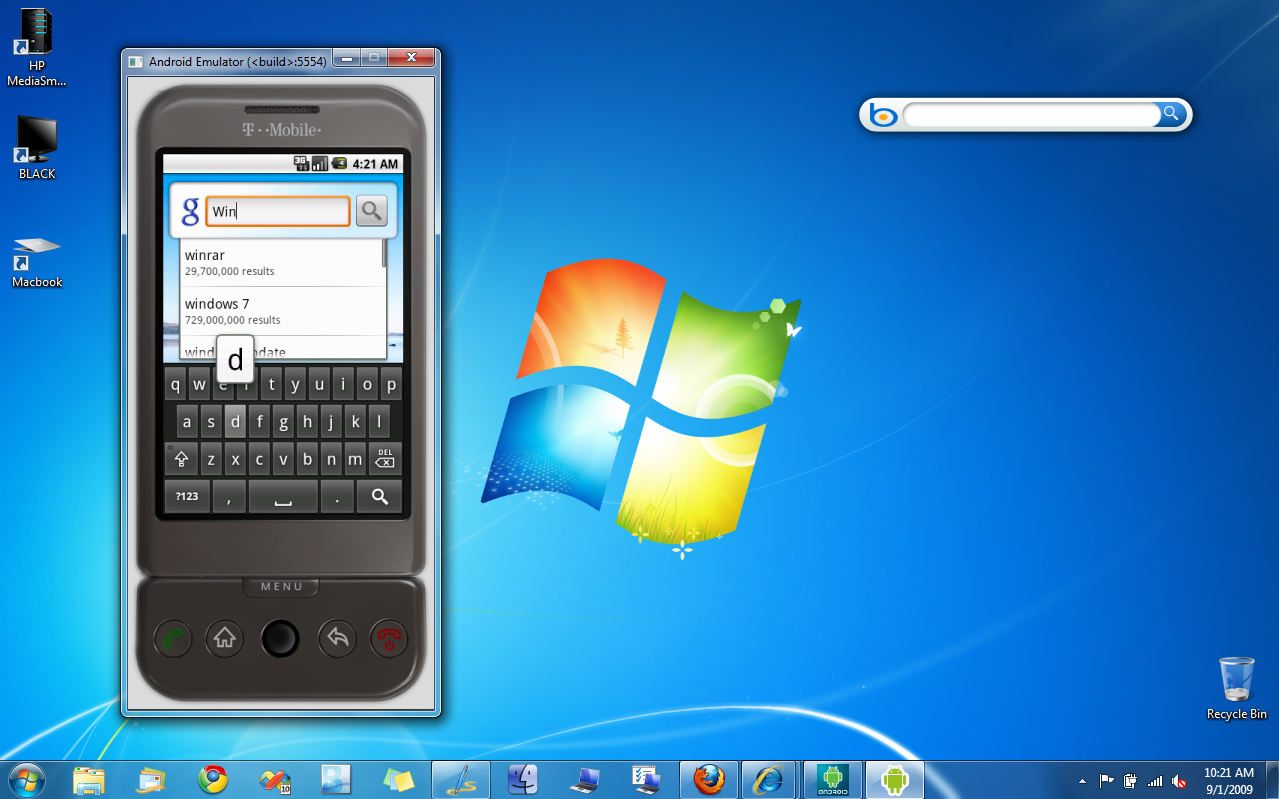
XDA-Developers forum member xda2_haseeb has managed to extract and run Android Emulator on Windows which comes as a part of Google Android SDK package. For those of you who want to take Android on a ride for general OS look and feel can use this standalone Android Emulator which is patched to run on a Windows PC as a standalone app without having to download and install the complete Android SDK.

Android Emulator for Windows Android Emulator for Windows

Android Emulator for Windows Android Emulator for Windows

Android Emulator for Windows Android Emulator for Windows

Android Emulator for Windows

Android on Windows 7

Installation instructions for standalone Android Emulator on Windows

1. Download Android Emulator v1.5 for Windows.
2. Extract the contents of the .rar file.
3. Now rename the extracted folder to "Android-Emulator".
4. Download the patched executable files from here.
5. Copy/Paste these patched files into the newly named “Android-Emulator” folder.

That’s it! You can now test and run the complete emulated mobile Android OS on your computer without having to download and install the SDK. You can even install Android compatible apps on it. Check out this link for more on installing apps and moving files on and off the phone. I have tested it on Windows 7 x64 and it works flawlessly on it. Now if only someone could come up with a way to install HTC Hero’s Sense UI on it!

Download Android Emulator 1.5 for Windows

AVG Internet Security 2013

Total Pageviews

Contributors