Search in uioop.blogspot.com

Wednesday, August 11, 2010

Test Drive Google Android OS on Windows 7

Article from http://www.redmondpie.com/android-emulator-for-windows/

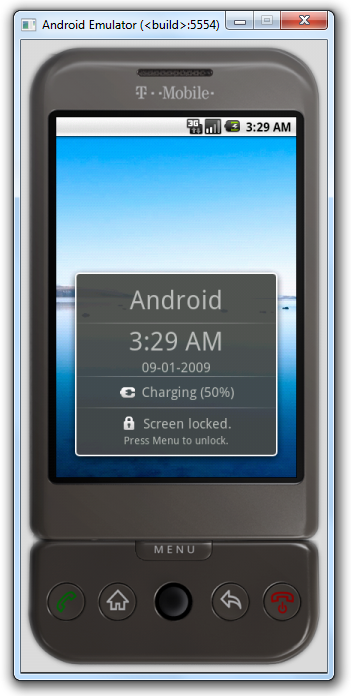
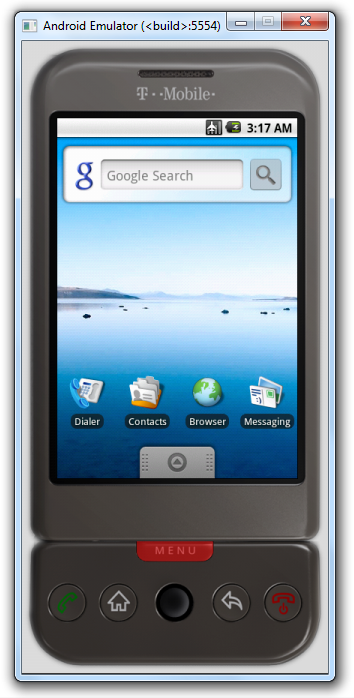
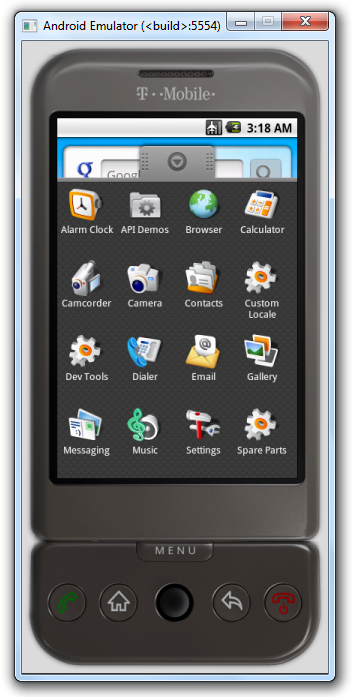
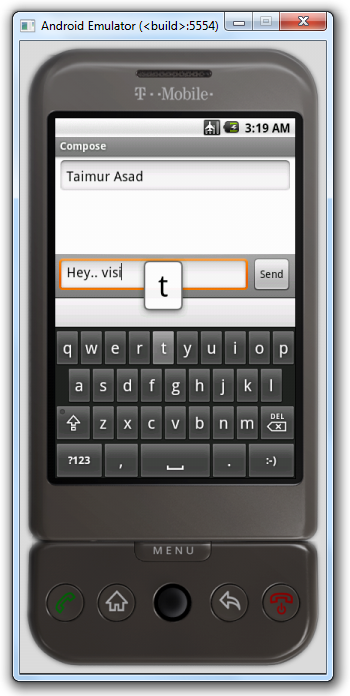
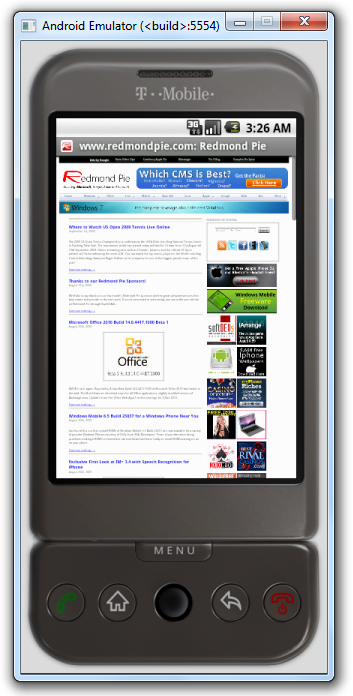
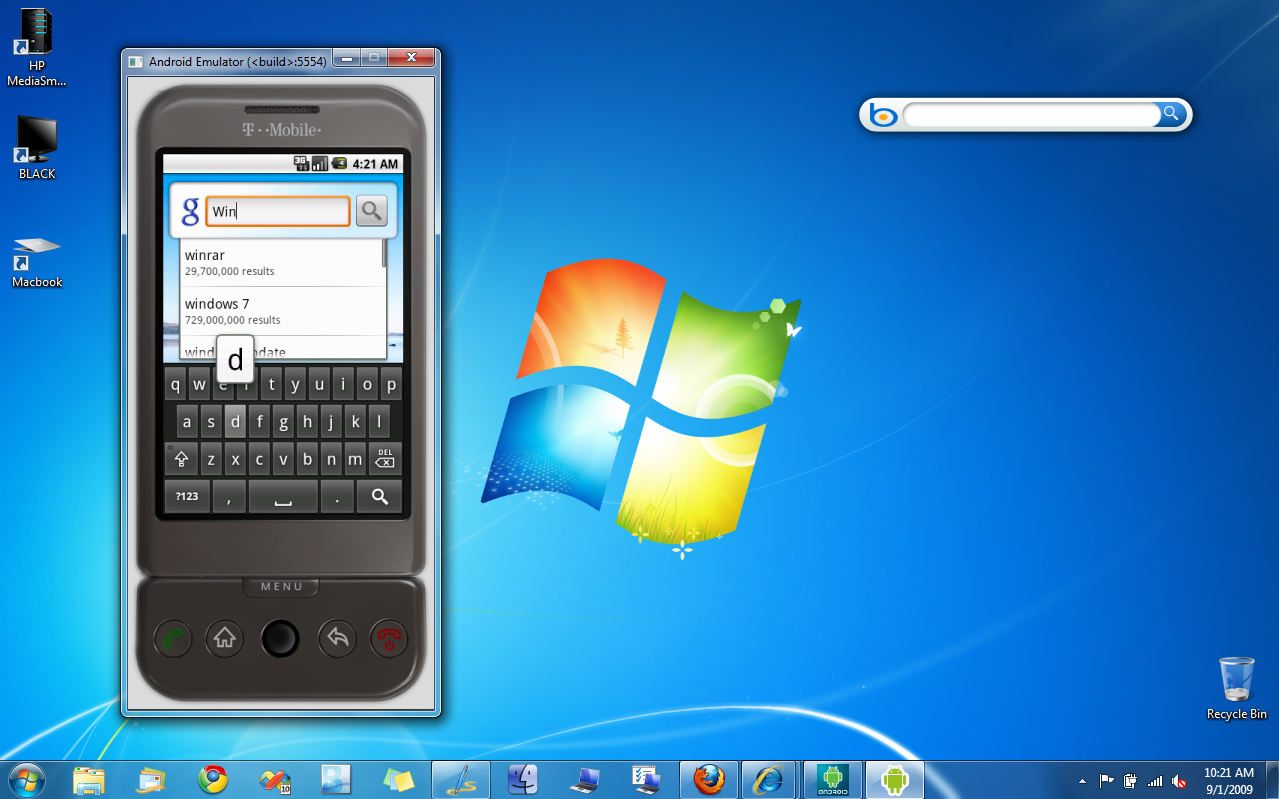
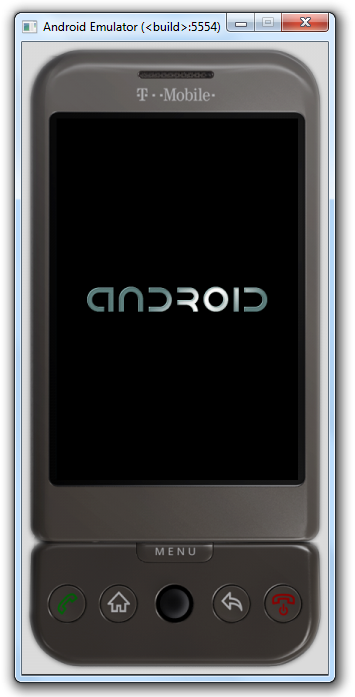
XDA-Developers forum member xda2_haseeb has managed to extract and run Android Emulator on Windows which comes as a part of Google Android SDK package. For those of you who want to take Android on a ride for general OS look and feel can use this standalone Android Emulator which is patched to run on a Windows PC as a standalone app without having to download and install the complete Android SDK.

Android Emulator for Windows Android Emulator for Windows

Android Emulator for Windows Android Emulator for Windows

Android Emulator for Windows Android Emulator for Windows

Android Emulator for Windows

Android on Windows 7

Installation instructions for standalone Android Emulator on Windows

1. Download Android Emulator v1.5 for Windows.
2. Extract the contents of the .rar file.
3. Now rename the extracted folder to "Android-Emulator".
4. Download the patched executable files from here.
5. Copy/Paste these patched files into the newly named “Android-Emulator” folder.

That’s it! You can now test and run the complete emulated mobile Android OS on your computer without having to download and install the SDK. You can even install Android compatible apps on it. Check out this link for more on installing apps and moving files on and off the phone. I have tested it on Windows 7 x64 and it works flawlessly on it. Now if only someone could come up with a way to install HTC Hero’s Sense UI on it!

Download Android Emulator 1.5 for Windows

Monday, March 15, 2010

How to use Kaspersky Free after 30 days trial period ?

Kaspersky is one of the top security software providing best protection to your data from latest Viruses, worms, phishing attacks, malware, etc. I’ve now found a 100% working trick, using which one can use Kaspersky Antivirus 2010 and Kaspersky Internet Security 2010 after end of its 30 days trail for Free.

Follow the steps below carefully to do it:

1. Open Kaspersky settings > Options and uncheck Enable Self-Defense. Click Ok.

2. Exit Kaspersky.

3. Go to Start, open Run, then type regedit and press enter.

4. Under Registry Editor, open HKEY_LOCAL_MACHINE > SOFTWARE > Kaspersky Lab > protected > AVP9 > environment.

registry

5. Find the entry ProductStatus and change Release to Beta.

6. Press OK then open Kaspersky.

7. Under License, Activate beta license then press Next and Finish (Delete any trial keys first if any, as they wont work).

8. Re-enable Self-Defense from options.

activated kaspersky

9. Now you have 30 days of beta license activated. After every 30 days, simply click Activate Beta (delete the expired beta key first) and enjoy another 30 days Free :D

Kaspersky will now show as Beta Version though it is your final version only. Enjoy!

How To Disable Kaspersky Antivirus Self Defense

Article from http://www.renjusblog.com/2009/08/disable-kaspersky-antivirus-self.html

The new function implemented by Kaspersky antivirus called the self defense is used to prevent unauthorized access to the Anti-Virus files.This self defense security option has now been extended with protection against auto clickers beginning from version 6.0.2.678. The main problem with the Kaspersky self defense is that it denies remote access to the Anti-Virus interface via programs like Radmin,PCAnywhere, WinVNC, UltraVNC because these software's have mechanism similar to auto-clickers.So you will have to disable self defense option in Kaspersky Antivirus or Kaspersky Internet Security in order to use these remote access softwares.

How to Disable Self Defense Option of Kaspersky

Inorder to disable selfdefense option locally you just need to take the settings of Kaspersky antivirus and and select the ‘options’ menu as shown below.

Kaspersky settings option

(version is Kaspersky antivirus 2010)

Kaspersky self defense disable

In the options menu,you can see a Enable self defense option.Uncheck it.

Click Apply and OK.

Now your Kaspersky self defense is disabled.

If you want to remove or disable self defense remotely (via the policy)

kaspersky-self-protection

Wednesday, December 30, 2009

Windows 2008的高级安全防火墙功能

在管理、维护局域网的过程中,网络管理员或许经常会遇到这样的一种现象,那就是一些不自觉的上网用户往往会在局域网中偷偷使用P2P工具,来下载大容量的电影或其他多媒体数据,这种恶意下载操作消耗掉了局域网中有限的宝贵带宽资源,并且很容易造成整个局域网网络不能稳定地运行。

事实上,我们可以利用Win2008系统新增加的高级安全防火墙功能,来控制恶意下载行为;考虑到P2P工具在进行恶意下载操作时,会通过系统的3077,3078端口对外进行网络通信,我们只要让高级安全防火墙功能限制3077,3078端口对外进行网络通信,就能实现阻止上网用户偷偷使用迅雷这样的P2P工具进行恶意下载了。现在,我们就利用Win2008系统的高级安全防火墙功能创建安全访问规则,禁止P2P工具进行下载连接:

首先以系统管理员权限进入Win2008系统桌面,依次点选“开始”菜单中的“程序”、“管理工具”、“服务器管理器”命令,从其后出现的服务器管理器窗口左侧位置处,将鼠标定位于“配置”节点选项上,再选中目标节点选项下面的“高级安全防火墙”项目;

其次打开“高级安全防火墙”配置界面,在该界面左侧位置处点选“出站规则”功能选项,再从对应该功能选项的右侧位置处点选“新规则”功能选项,打开安全出站规则创建向导对话框,当向导对话框询问我们要进行何种类型的控制操作时,我们应该选中这里的“端口”选项,以便让高级安全防火墙功能对本地计算机中3077、3078端口的网络连接进行限制;

接着单击“下一步”按钮,在其后出现的向导设置对话框中选中“TCP”功能选项,并且选中“特定本地端口”选项,此时“特定本地端口”文本框会被自动激活,在该文本框中直接输入“3077,3078”端口号码,

再单击“下一步”按钮后,向导屏幕会弹出提示询问“连接符合指定条件时应该进行什么操作”,这个时候我们必须将“阻止连接”功能选项选中,之后设置好该安全规则具体的应用范围,在这里我们可以同时选中“域”、“专用”、“公用”这几种应用环境,最后为新创建的出站规则设置一个合适的名称,再单击“完成”按钮结束安全出站规则的创建工作,这样的话任何一位上网用户在本地Win2008系统中尝试进行恶意下载时,Win2008系统自带的高级安全防火墙功能就对自动对这样的恶意下载进行拦截,那么本地网络的运行稳定性自然也就能得到有效保证了。

AVG Internet Security 2013

Total Pageviews

Contributors